Why Figma MCP Code Does Not Match the Design
By UpBuilder Team
Reviewed and updated July 12, 2026
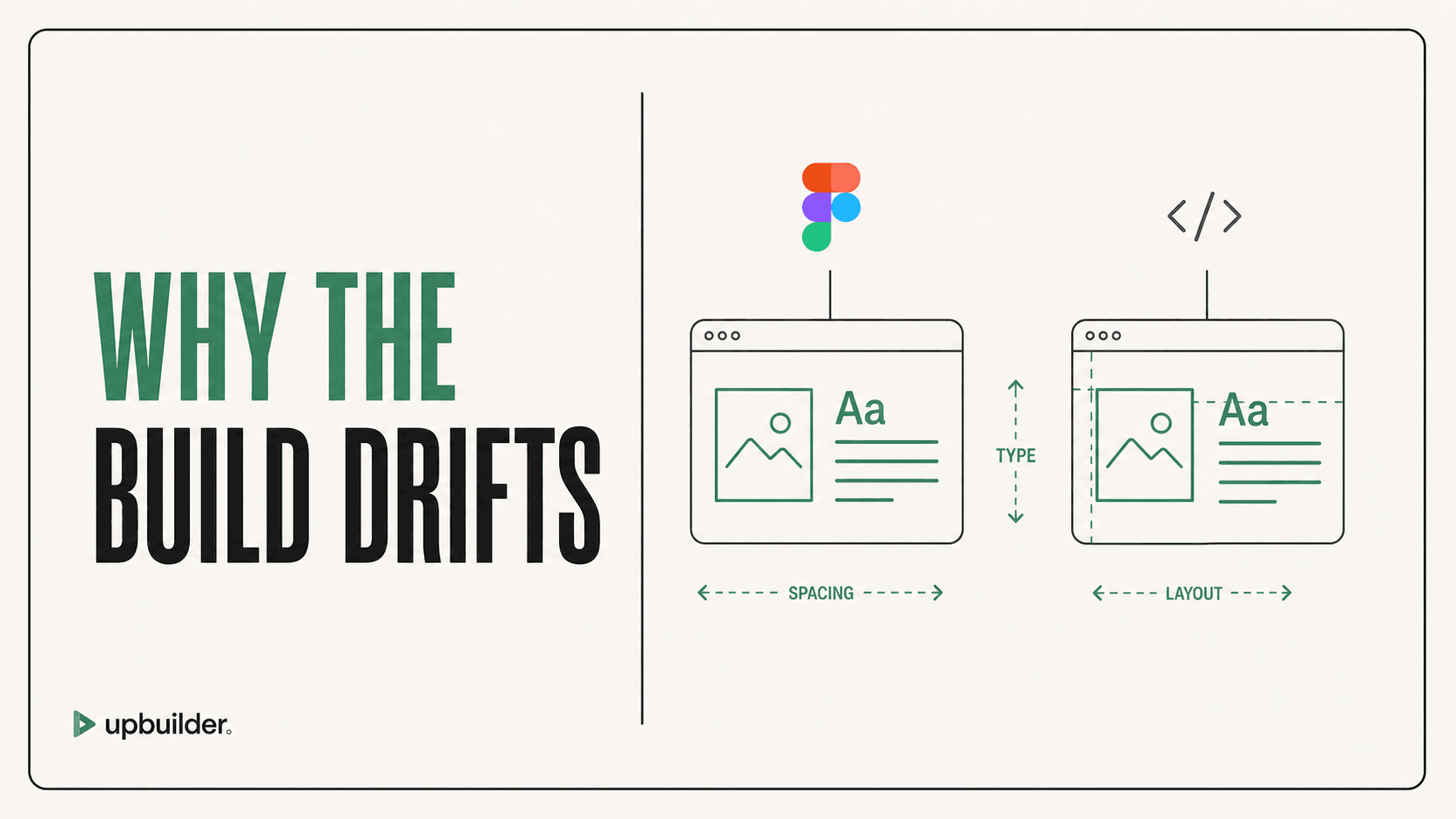
Short answer: Figma MCP supplies context, not guaranteed final code. Mismatches usually come from oversized selections, incomplete design context, ambiguous layouts, component or override interpretation, temporary assets, client rules, and the absence of visual validation.
What matters most
- Scope requests to a page or component.
- Request screenshots and assets explicitly.
- Give the agent repository-specific rules.
- Render and compare instead of trusting code inspection.
Design context still requires implementation decisions

The MCP server is only one part of the result
Figma states that final code quality depends on the MCP client and model. Two agents can receive similar context and produce very different implementations. Context windows, tool selection, prompts, framework conventions, and prior conversation all influence the output.
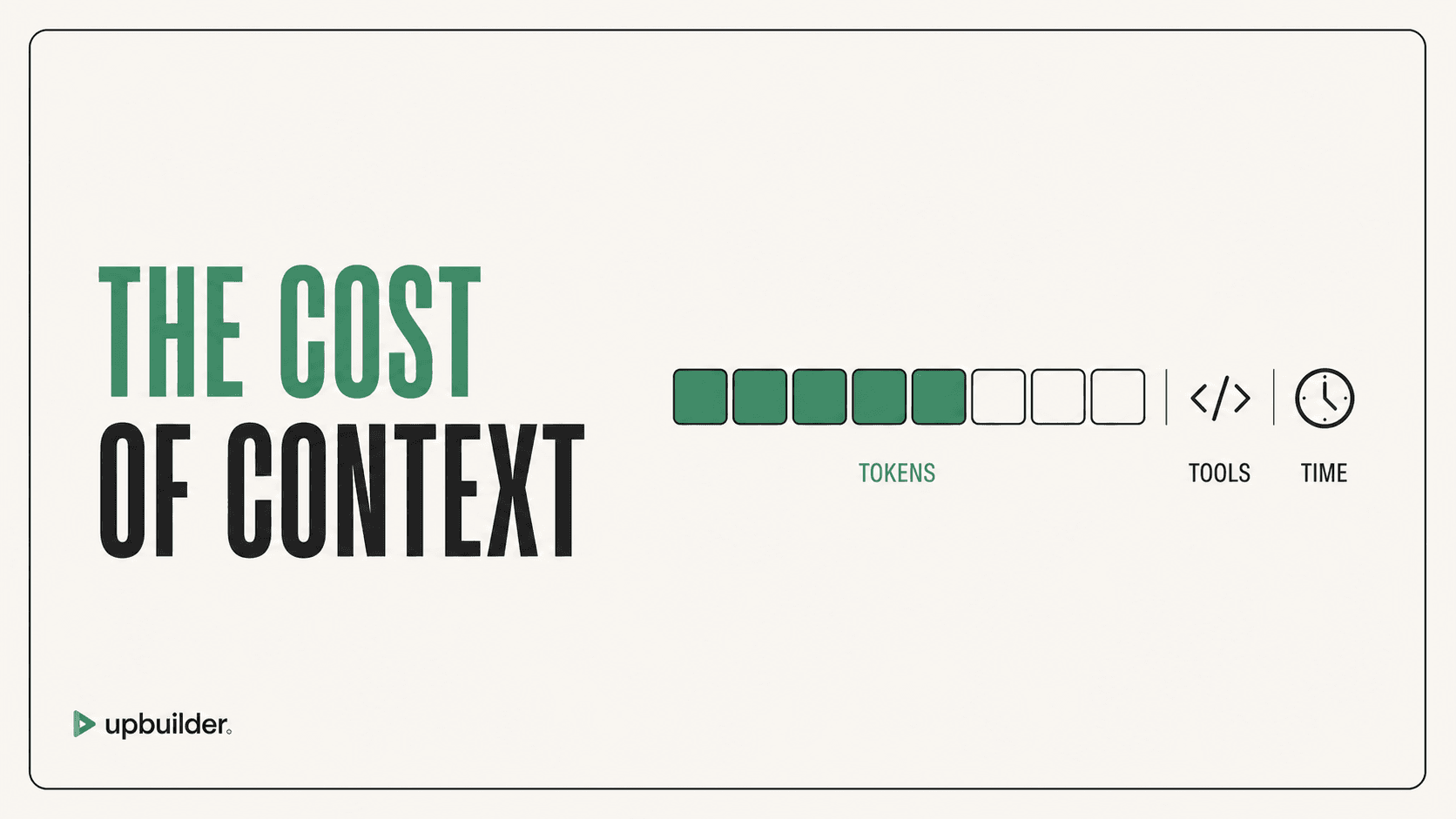
Large selections can introduce irrelevant layers and consume more context. Small selections can omit shared variables, parents, assets, or responsive relationships. The user must find a useful scope and verify what the agent actually received.
Common failure patterns
Figma community reports include variant token mismatches, instance override problems, SVG bounds differences, and fidelity issues on complex interfaces. These reports do not affect every file, but they show why a deterministic review step matters.
- Wrong component variant or default-state assumptions
- Flattened or incorrect layout relationships
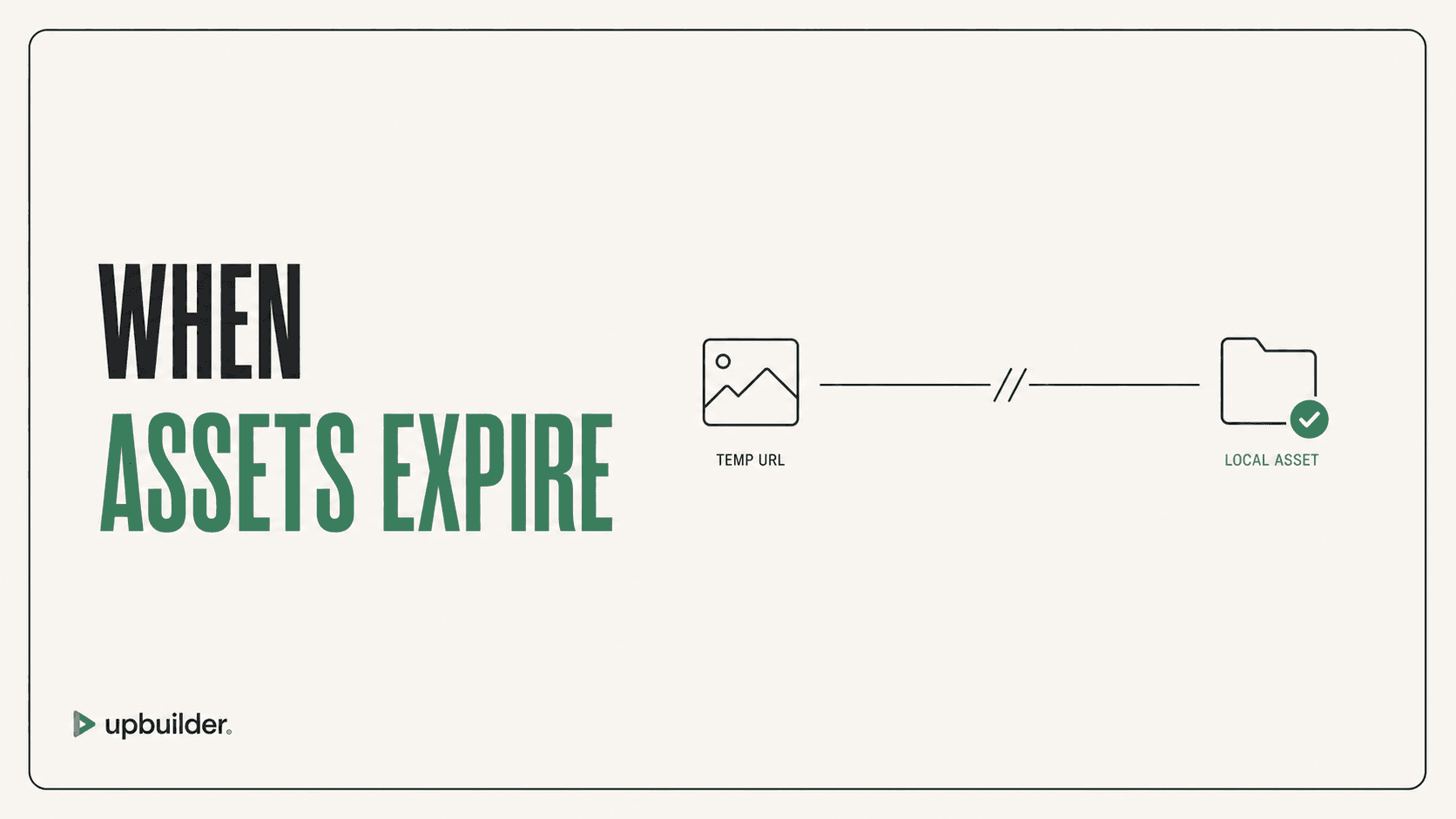
- Expired or incorrectly scaled assets
- Missing font and variable mapping
- Desktop-only output with guessed mobile behavior
When UpBuilder helps
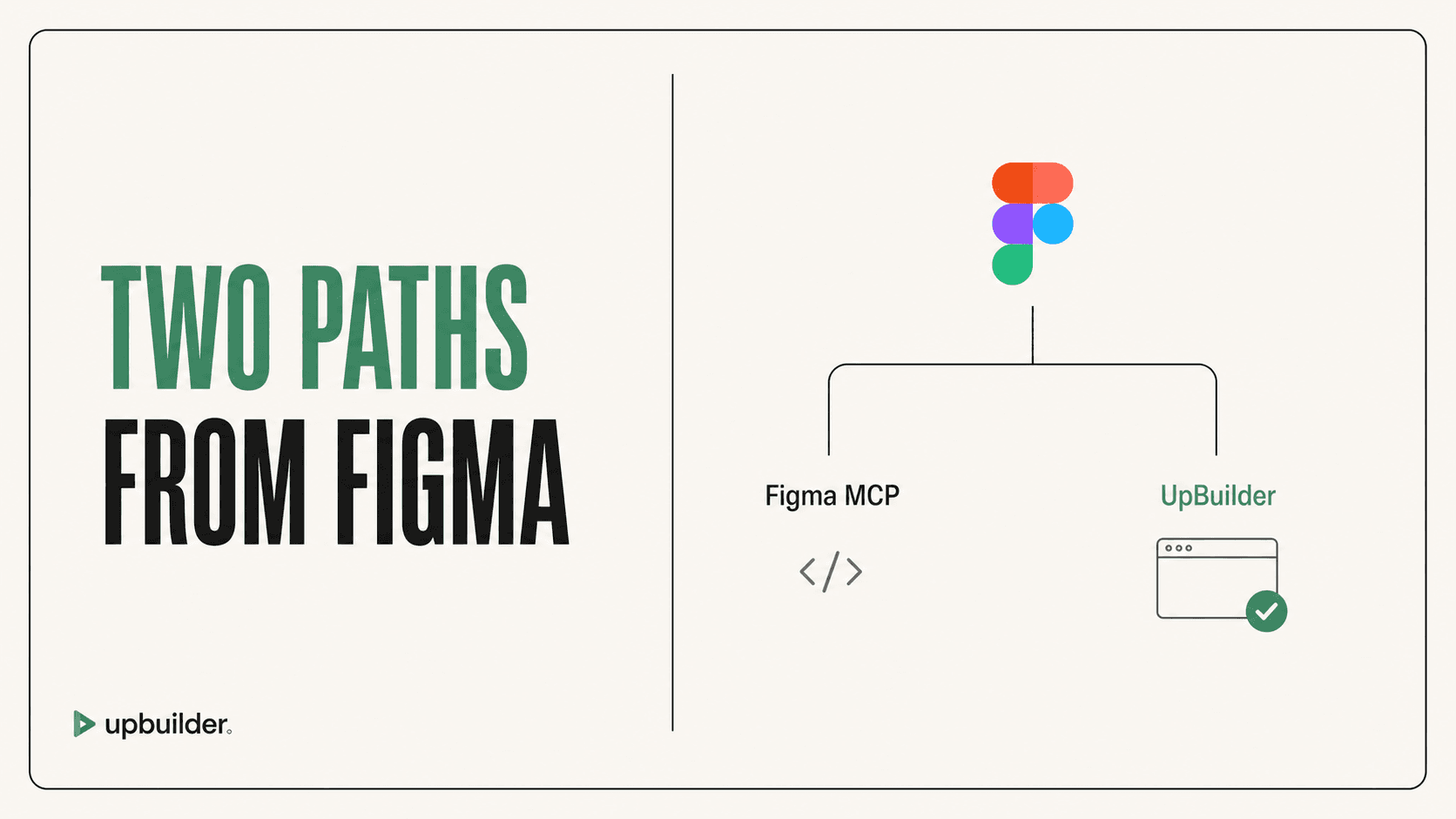
UpBuilder narrows the task to website production and incorporates rendered comparison and supported destination checks. It can process selected multi-page designs without requiring the user to manually coordinate context requests and repair prompts.
For a custom codebase, Figma MCP may remain the better building block. For a complete Webflow, Elementor, React, HTML/CSS, or Astro destination, a specialized conversion workflow can reduce orchestration.


Recommended workflow
- Reduce the selection to one complete representative page.
- Ask the agent to use screenshots and download required assets.
- Supply framework, component, and styling rules.
- Build at the exact Figma viewport size.
- Compare screenshots and list measurable differences.
- Repair one class of error at a time.
Common questions
Is Figma MCP inaccurate?
It can provide accurate design context, but final implementation accuracy depends on the selection, server response, AI client, model, rules, and validation process.
Does Auto Layout solve every MCP issue?
No. Auto Layout improves structural signals, but variants, assets, typography, component mapping, and responsive interpretation can still differ.
Can UpBuilder fix an existing MCP build?
The cleanest workflow is usually to rebuild from the Figma source in UpBuilder, compare the destination, and then preserve any intentional custom work separately.
Sources and verification
Product limits and features can change. These sources were reviewed for this guide. Community discussions are identified separately and are not treated as universal product facts.
Ready to build from Figma?
Build your selected Figma designs into an editable website and review the real output.
Start a build