How to Export Figma to Webflow: Production Workflow
By UpBuilder Team
Reviewed and updated July 14, 2026
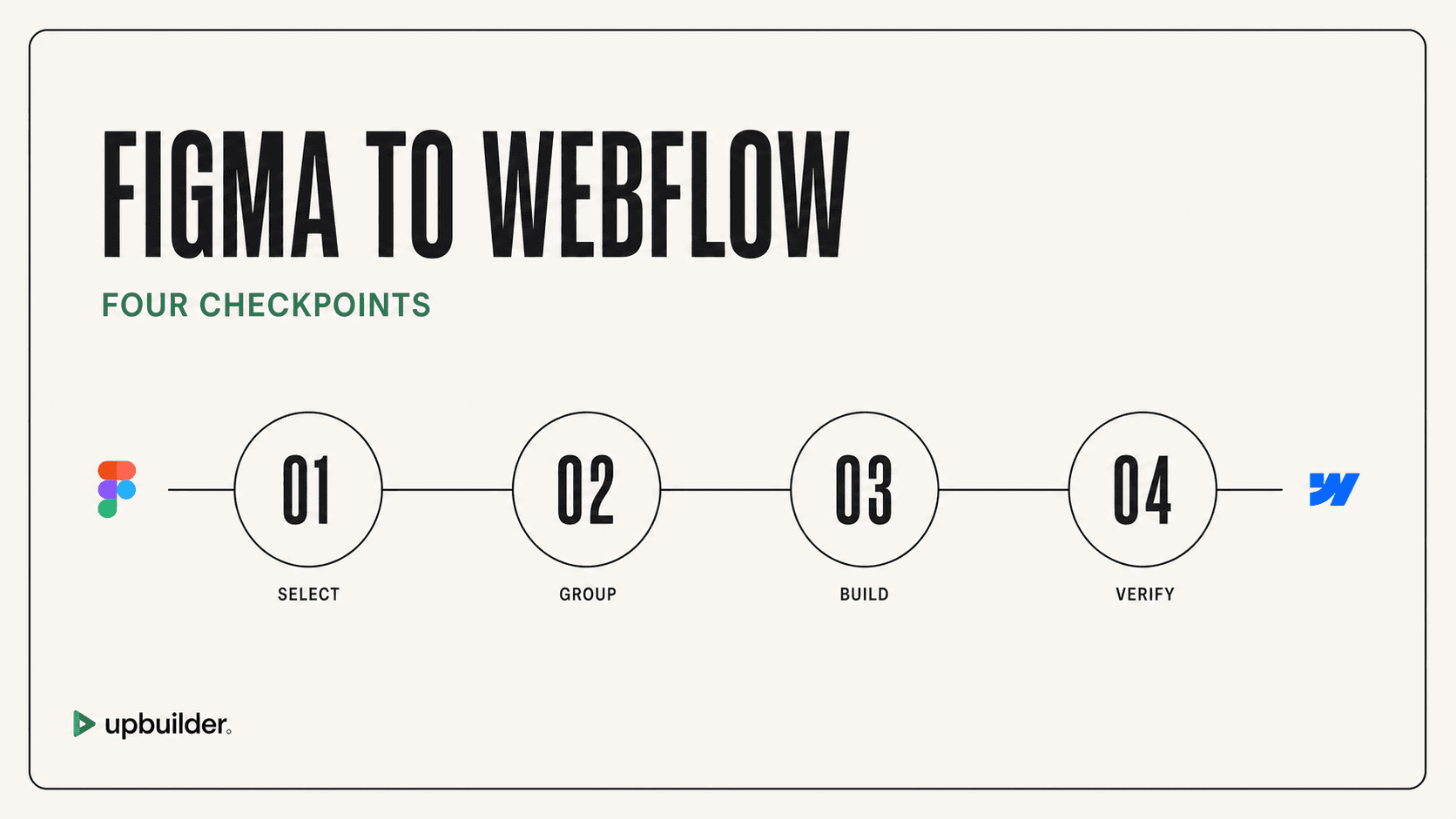
Short answer: Exporting Figma to Webflow reliably requires six stages: review the source, map pages and responsive variants, generate into a staging destination, inspect native structure, compare rendered output, and complete launch QA.
What matters most
- Start with complete page frames.
- Map responsive variants before building.
- Use a staging Webflow project.
- Test the published result before launch.
From selected frames to a tested Webflow project

Prepare the source without redesigning it
Confirm the frames that represent real pages, responsive variants, overlays, and component states. Preserve original text and assets. Resolve duplicate names and identify desktop, tablet, and mobile relationships.
Do not spend hours rebuilding the file before testing unless your selected workflow requires it. UpBuilder can evaluate supported files without mandatory Auto Layout preparation, but clear grouping and representative references still improve the result.
Map pages and shared systems
Create the intended URL list and match each page to its source frames. Identify global navigation, footer, buttons, cards, forms, variables, and content patterns. Decide which repeated patterns should become components.
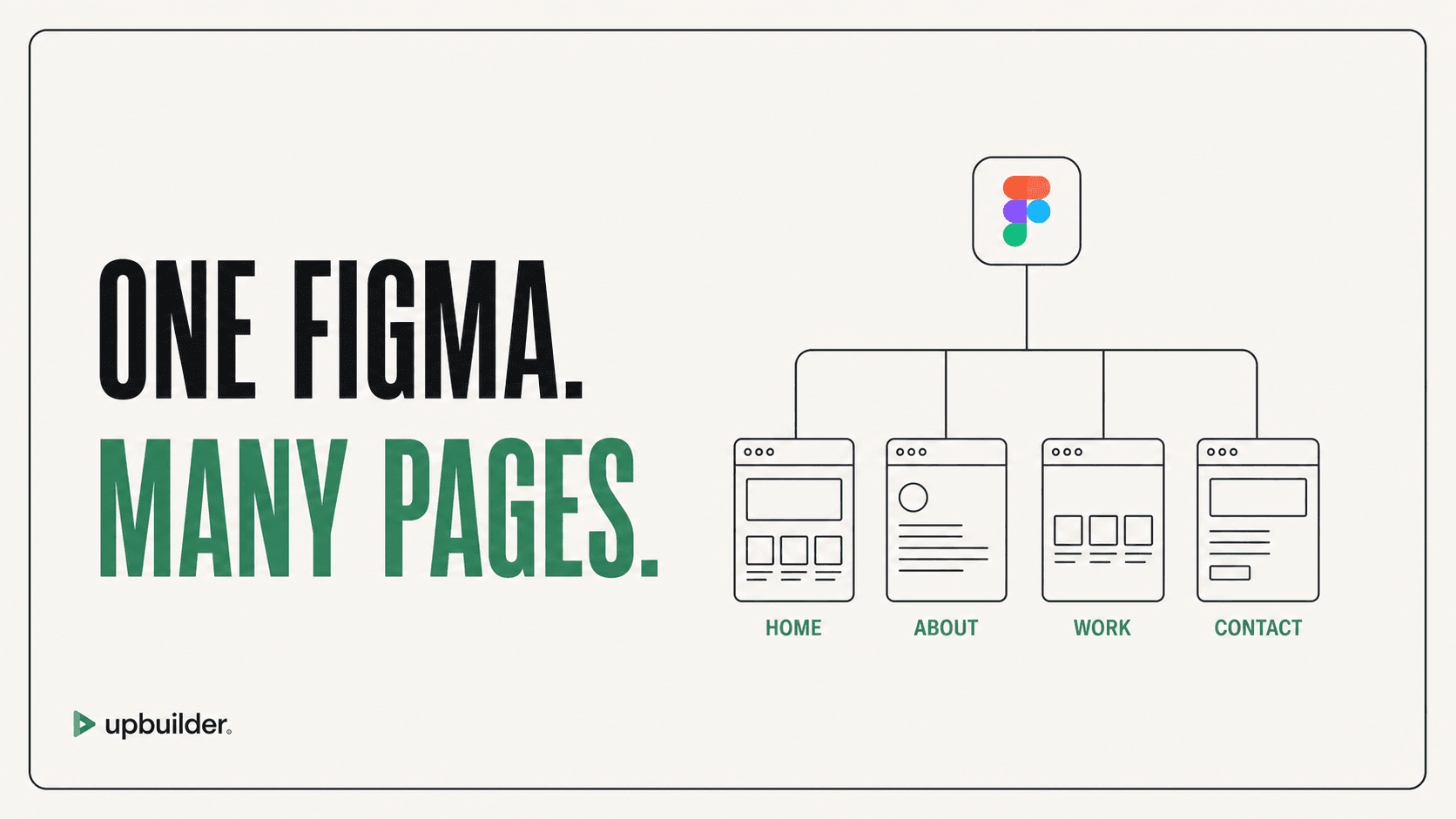
UpBuilder currently supports up to 15 selected designs per project build. A design can represent a complete page or a responsive variant, so plan the selection around the project limit and verify current terms inside the product before delivery.
Generate into staging
Connect a safe Webflow destination rather than overwriting production. Generate the selected project, then inspect elements, classes, assets, components, and supported interactions in Webflow.
Do not judge success only from the UpBuilder preview. Destination fonts, platform styles, asset handling, and runtime behavior can alter the published page.
Run visual and functional QA
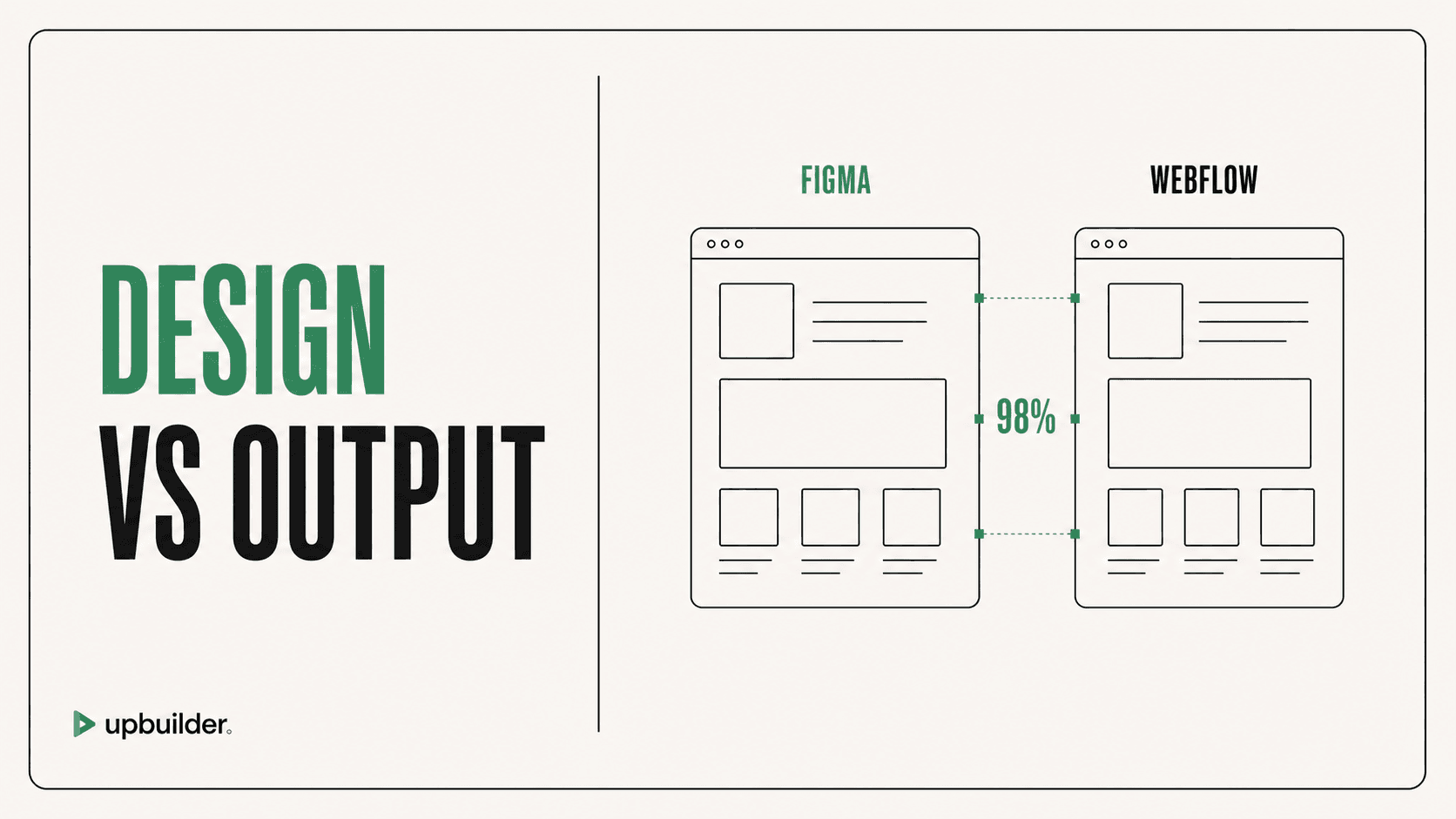
Compare the published staging page with Figma at exact reference widths. Then test intermediate widths, long content, navigation, forms, links, sliders, focus states, reduced motion, and browser console errors.
UpBuilder can run supported published-site checks and repair attempts. Human acceptance remains responsible for content meaning, accessibility, analytics, privacy, SEO fields, third-party scripts, and launch approval.
Complete the handoff
Set titles, descriptions, canonical URLs, social images, redirects, analytics, consent, form notifications, domain settings, and backup ownership. Document components, shared classes, custom code, integrations, and intentional differences from Figma.


Recommended workflow
- Install and open UpBuilder from the Figma Community.
- Select complete page frames and responsive variants.
- Review the page mapping and chosen destination.
- Generate into a staging Webflow project.
- Inspect and edit the native destination structure.
- Publish to staging and complete responsive, functional, accessibility, and SEO QA.
Common questions
Do I need a paid Webflow account to test?
Destination requirements depend on the Webflow operation and plan. Confirm current Webflow access before planning a production workflow.
How long does conversion take?
Time varies with page count, complexity, assets, destination access, and repair work. Measure a representative page instead of relying on a universal estimate.
Can I export multiple pages?
Yes. UpBuilder supports multi-design project builds within current selection and project limits.
Verify current access before building
Capabilities, destinations, and usage limits can change. Confirm the current options shown inside UpBuilder before committing a production project.
Ready to build from Figma?
Build your selected Figma designs into an editable website and review the real output.
Start a build