How to Get More Accurate Figma to Webflow Results
By UpBuilder Team
Reviewed and updated July 12, 2026
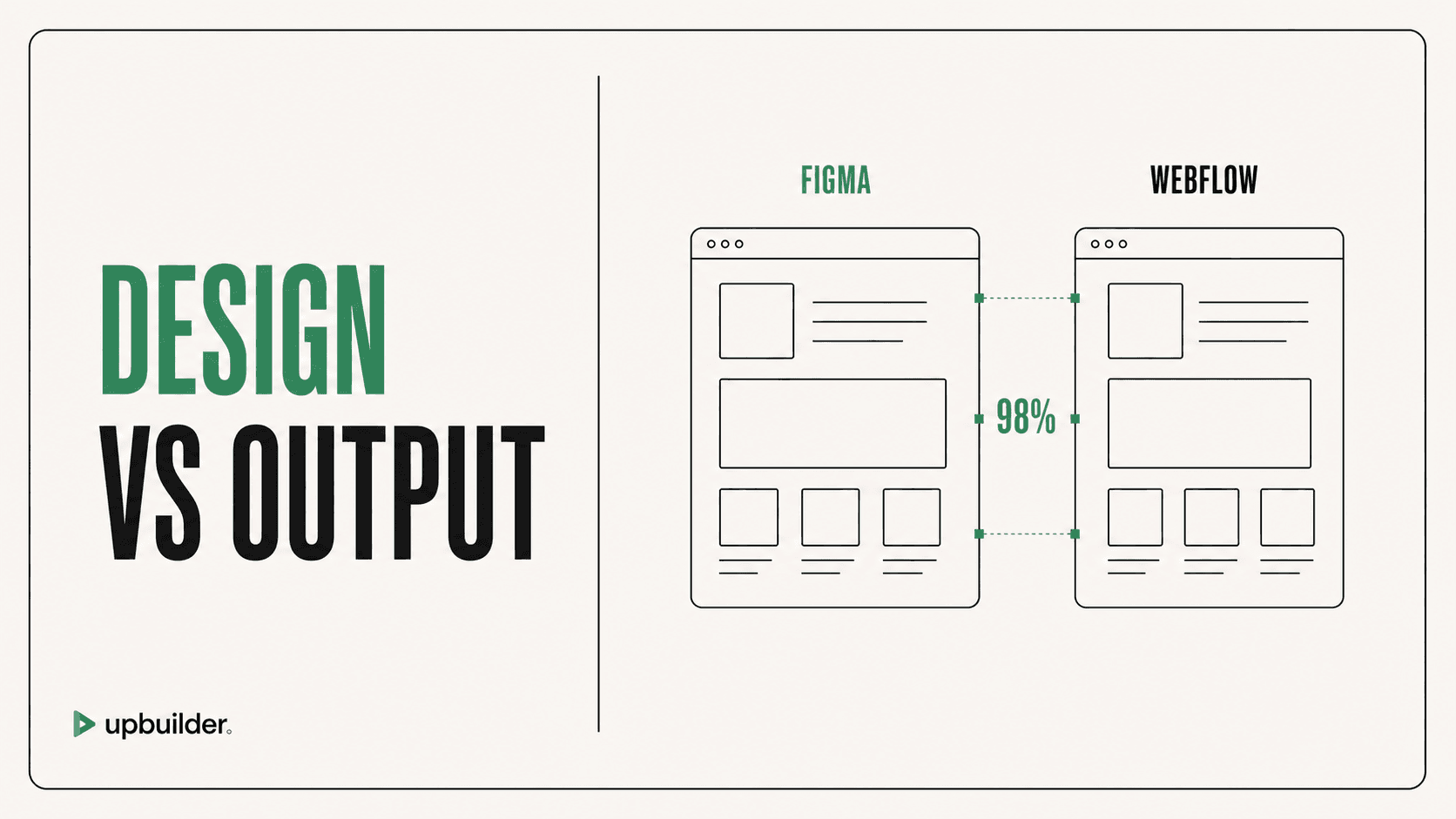
Short answer: Accurate conversion requires more than code generation. The strongest workflow combines source structure, visual references, responsive intent, rendered comparison, repair, and live destination testing.
What matters most
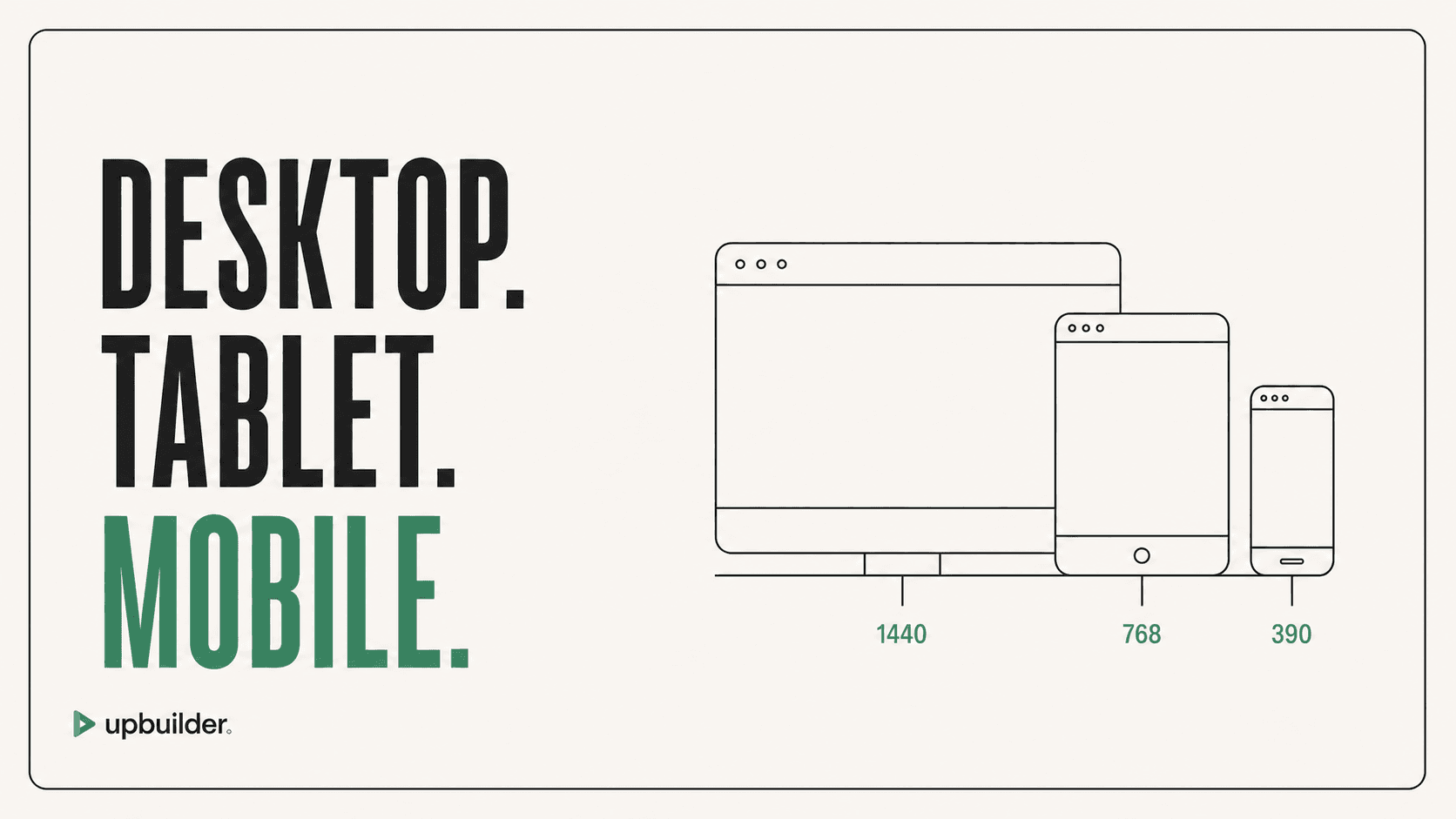
- Select complete page frames and their responsive variants.
- Preserve original assets and fonts.
- Compare rendered output at matching viewport sizes.
- Test the real Webflow staging site before handoff.
Accuracy comes from comparison and correction

Why first-pass generation drifts
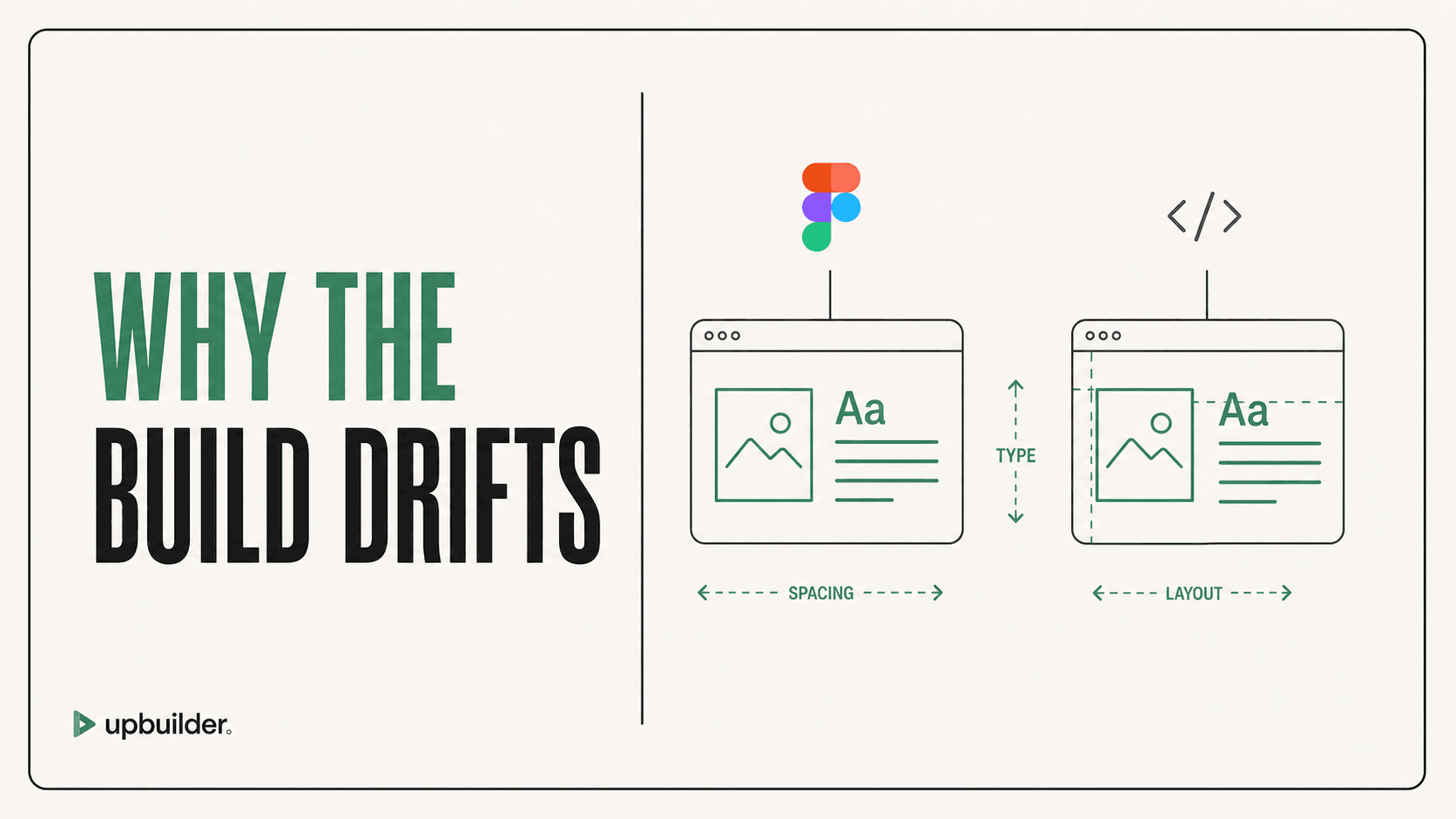
A Figma canvas can express a visual result without fully describing browser behavior. Fixed coordinates, overlapping layers, masks, missing mobile references, inconsistent components, and ambiguous resizing rules force any converter to infer intent.
The right response is not to pretend ambiguity does not exist. A quality workflow should identify the likely structure, render it, compare it with available references, and repair measurable differences.
What UpBuilder High Quality Mode adds
UpBuilder uses a multi-stage workflow that extracts, organizes, builds, compares, repairs, and verifies. Supported Webflow projects can be checked using the published staging URL at multiple viewport sizes, including runtime probes and interaction evidence.
This increases capacity for complex builds because the process does not stop at the first plausible output. The result still needs human acceptance for content, business logic, accessibility, and subjective design decisions.
Define accuracy before you build
Create an acceptance checklist for layout, typography, colors, images, responsive behavior, links, forms, navigation, animations, and editor usability. Distinguish blocking errors from small visual differences. This prevents endless polishing and gives the team an objective handoff standard.


Recommended workflow
- Select a representative complex page and all available breakpoints.
- Confirm fonts, assets, and destination access.
- Generate and compare at exact reference widths.
- Repair blocking visual and responsive differences.
- Publish to staging and test supported interactions.
- Record remaining intentional differences before handoff.
Common questions
Can Figma to Webflow be pixel perfect?
It can be very close, but browser rendering, font metrics, responsive behavior, and ambiguous source structure make a universal pixel-perfect guarantee unrealistic. Use measured visual comparison and acceptance thresholds.
Does a better AI model improve accuracy?
Model capacity helps with interpretation and repair, but extraction quality, destination tools, visual comparison, and QA are equally important.
Why does mobile look worse than desktop?
Mobile often requires decisions that are not visible in a desktop-only design. Provide mobile references or explicit rules for stacking, hiding, order, spacing, and interaction behavior.
Verify current access before building
Capabilities, destinations, and usage limits can change. Confirm the current options shown inside UpBuilder before committing a production project.
Ready to build from Figma?
Build your selected Figma designs into an editable website and review the real output.
Start a build