How to Convert a Multi-Page Figma Website to Webflow
By UpBuilder Team
Reviewed and updated July 12, 2026
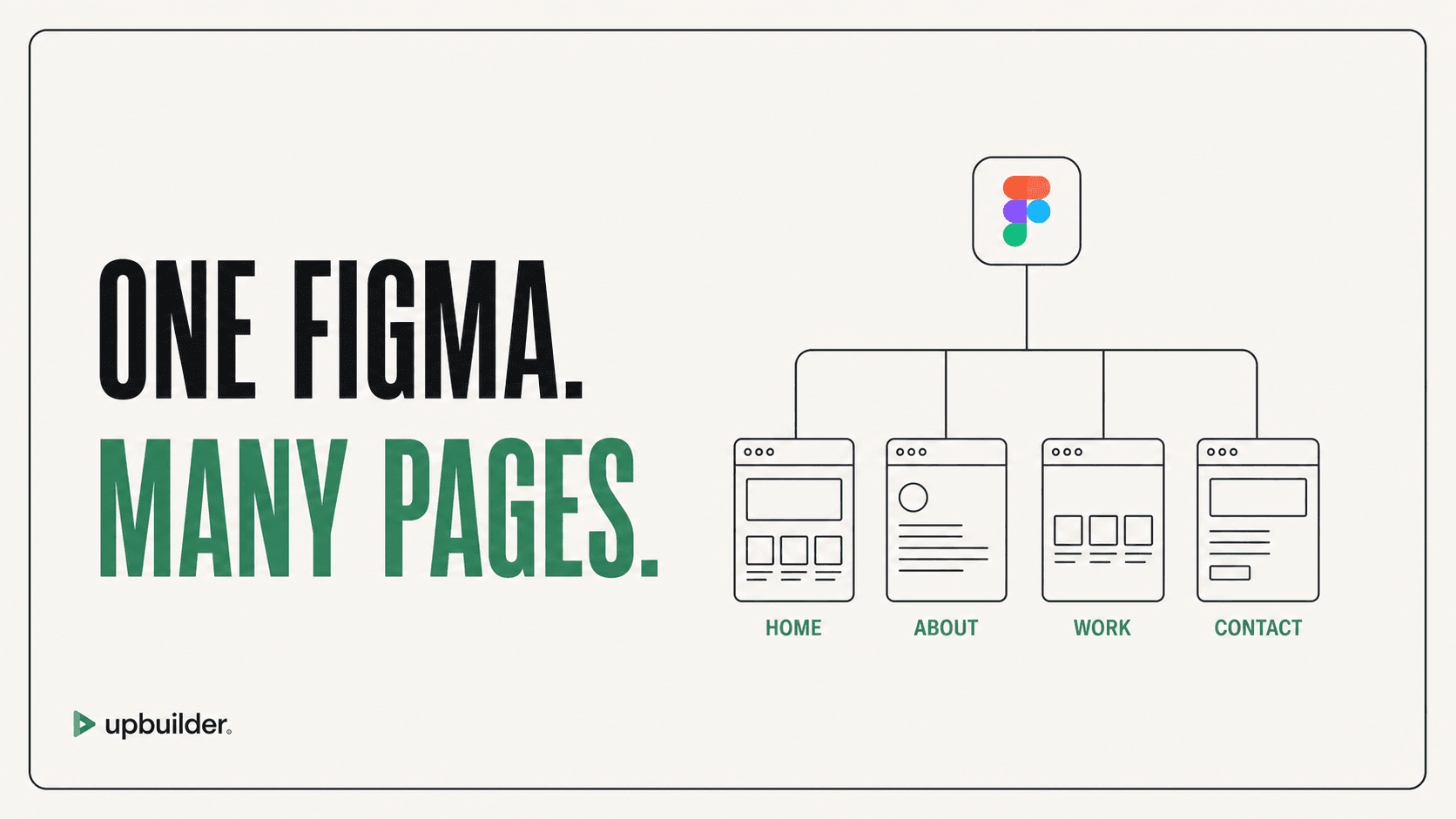
Short answer: Select complete page frames and their responsive variants, establish page names and shared components, then build and validate the site as one connected project rather than exporting isolated sections.
What matters most
- Map frames to logical pages before generation.
- Identify shared navigation, footer, buttons, and sections.
- Preserve URL and content hierarchy.
- Test links and shared changes across the complete site.
Organize selected frames into a coherent website

Why isolated exports create problems
When each frame is converted independently, repeated navigation and footer structures can become unrelated copies. Class naming drifts, assets duplicate, and responsive variants can be mistaken for separate pages.
UpBuilder supports up to 15 selected designs per project build. Its setup workflow maps selected frames into pages and variants so the build has a coherent site-level view.
Plan the website map first
Create a small table with the intended URL, desktop frame, tablet frame, mobile frame, shared layout, CMS requirements, and status. Resolve duplicate or ambiguous names before building. Decide which patterns should be components and which are unique sections.
Validate site-level behavior
Check navigation links, active states, footer links, shared components, forms, global variables, title tags, descriptions, canonical URLs, and 404 behavior. A multi-page project is only complete when the pages work together.
Plan CMS and SEO ownership
Decide which pages are static and which belong to Webflow CMS before rebuilding repeated layouts manually. Define collection fields, references, slugs, empty states, filters, pagination, and editor permissions.
Preserve the intended URL hierarchy and map redirects before launch. Each indexable page needs a unique title, description, canonical URL, heading purpose, and internal-link role.


Recommended workflow
- Select up to the supported project limit of complete page and breakpoint frames.
- Confirm the page and variant mapping.
- Identify global components, styles, and assets.
- Build into a staging Webflow destination.
- Review each page and responsive width.
- Test navigation, forms, components, SEO fields, and published URLs.
Common questions
Can UpBuilder convert multiple Figma pages at once?
The current workflow supports up to 15 selected designs per project build, which can represent complete pages and responsive variants. Confirm current capacity inside the product.
Should mobile frames count as separate pages?
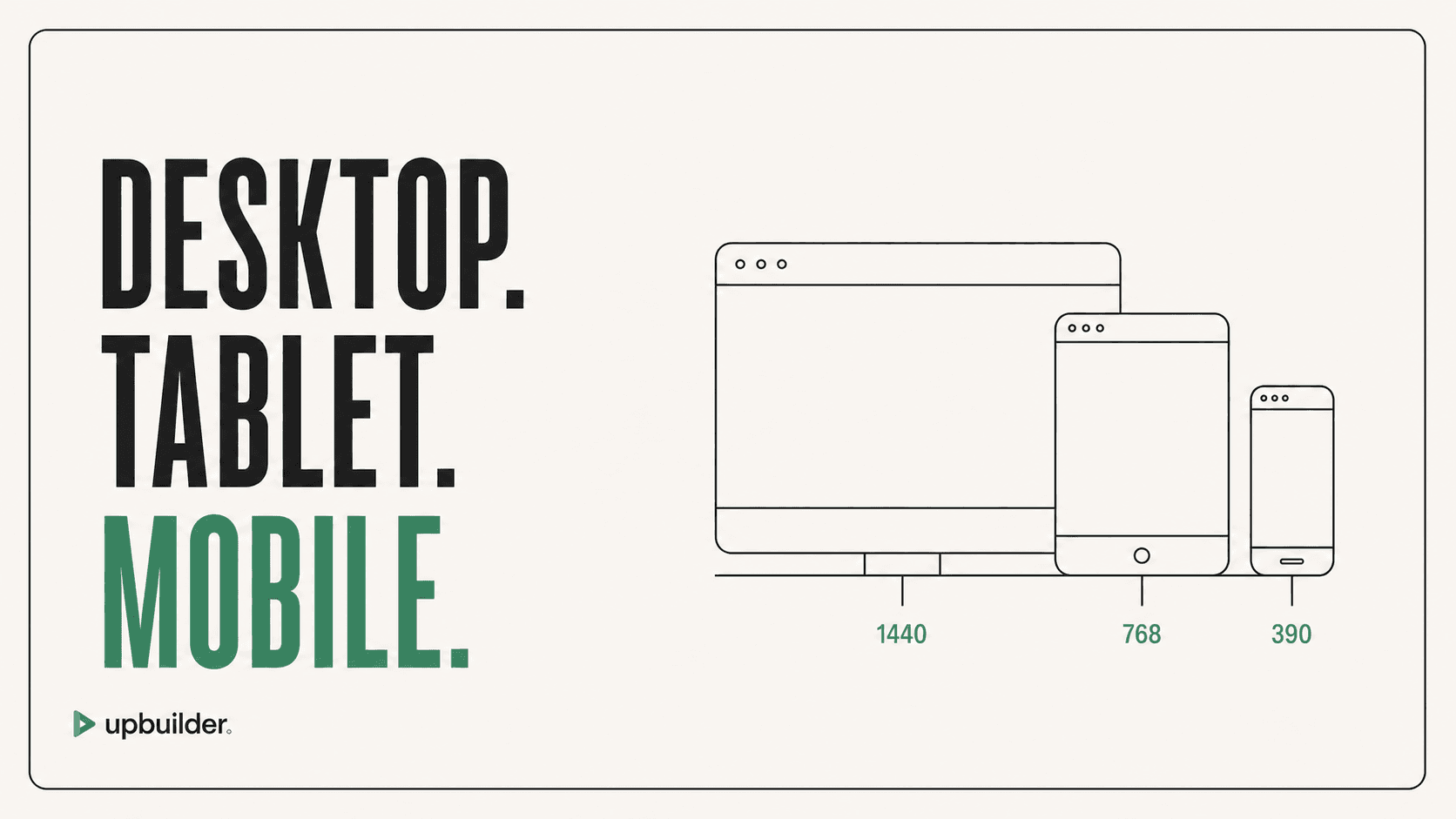
No. They should be mapped as responsive variants of the same logical page when that is their intended relationship.
Will repeated sections become components?
Supported output can use reusable destination structures, but the user should review component boundaries and shared edit behavior before handoff.
Verify current access before building
Capabilities, destinations, and usage limits can change. Confirm the current options shown inside UpBuilder before committing a production project.
Ready to build from Figma?
Build your selected Figma designs into an editable website and review the real output.
Start a build