Official Figma to Webflow Plugin vs AI Conversion
By UpBuilder Team
Reviewed and updated July 14, 2026
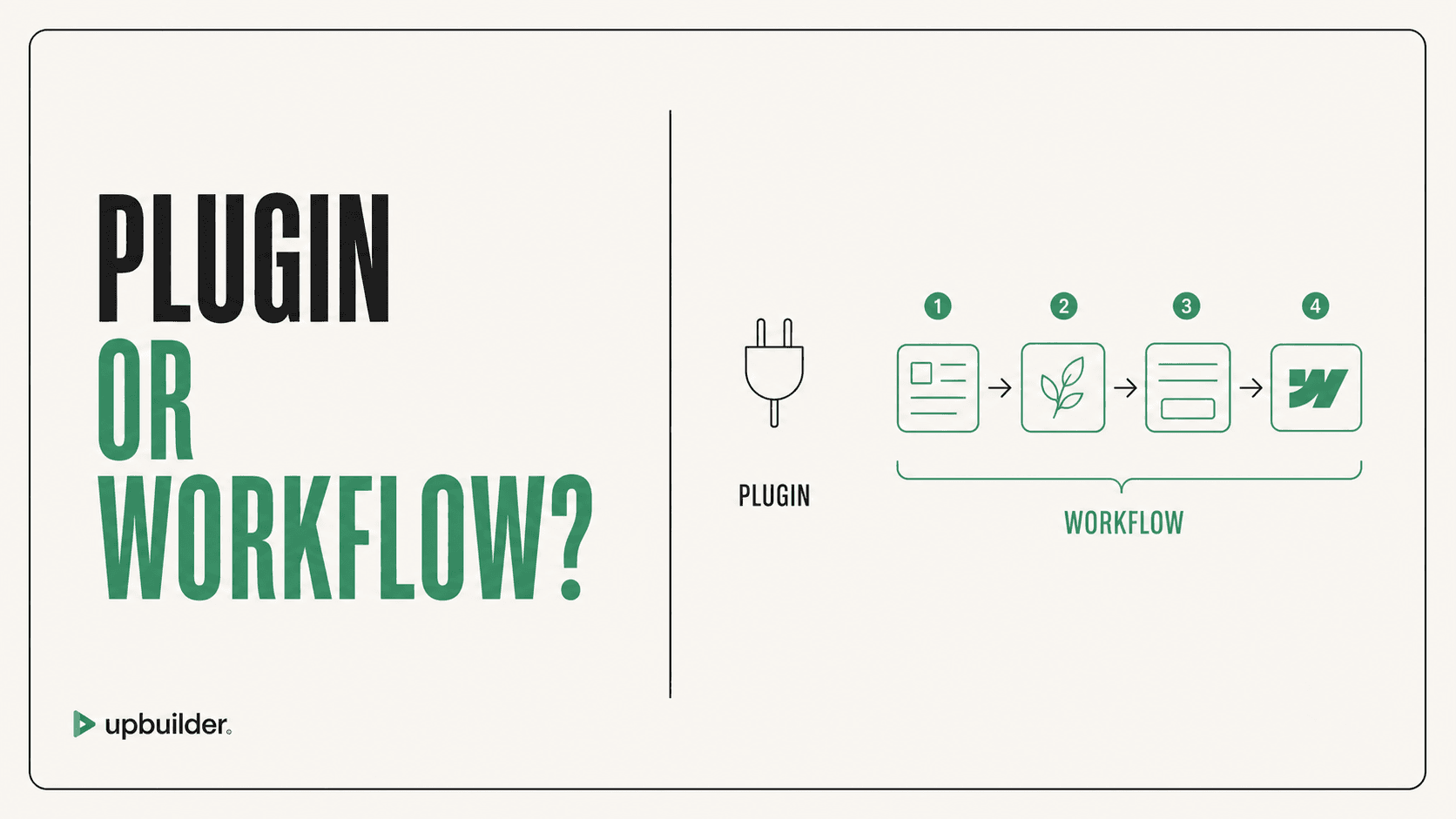
Short answer: Use the official workflow when your Figma structure is prepared for supported Webflow sync and design-system mapping. Use an AI reconstruction workflow such as UpBuilder when approved client files have mixed structure and the goal includes page grouping, responsive inference, visual comparison, and destination QA.
What matters most
- Official sync rewards prepared source structure.
- AI reconstruction can interpret mixed real-world files.
- Neither approach removes destination review.
- Compare cleanup time and editability on the same page.
Compare sync, generation, and complete delivery

These workflows solve different problems
Official sync translates supported Figma structure into Webflow concepts. It is a logical choice for teams that control the design system, use compatible Auto Layout patterns, and want predictable mapping of supported styles and components.
UpBuilder treats the selected design as evidence for a complete website build. It organizes page variants, reconstructs browser layout, generates for Webflow, compares the rendered output, repairs supported differences, and checks the destination where access is available.
Preparation and source-file quality
A structured source file benefits every workflow. Clear names, reusable components, real text, consistent styles, and responsive references reduce uncertainty. The difference is whether conversion is blocked until the file follows a required preparation pattern.
For legacy or client-owned files, calculate the cost and risk of changing the approved design before export. Test AI inference first, then prepare only the areas that remain genuinely ambiguous.
Responsive behavior and visual fidelity
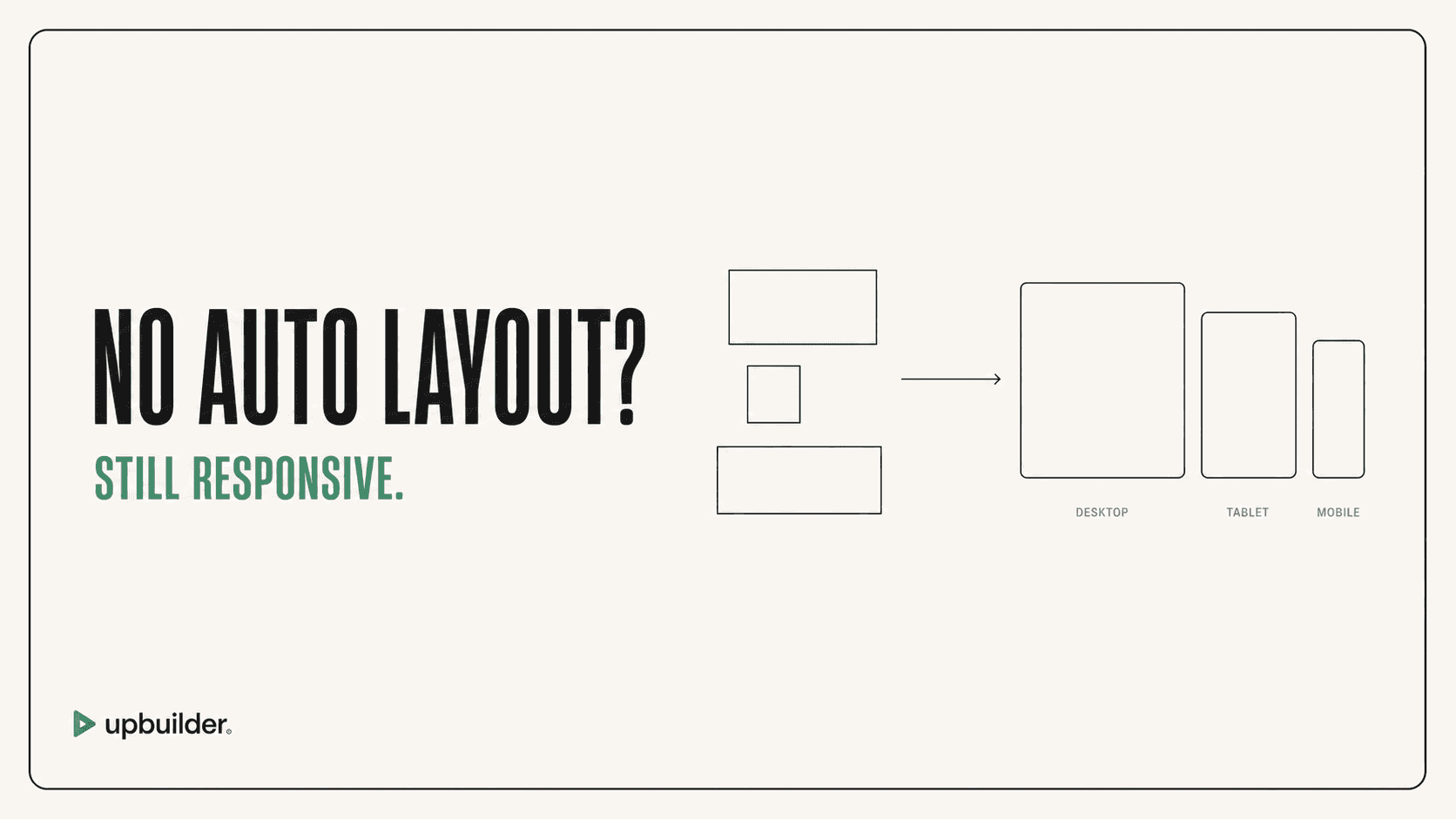
Sync can preserve explicit structural signals, but a static frame still cannot specify every width. AI can infer missing behavior, but inference should be treated as a hypothesis until it is rendered and tested.
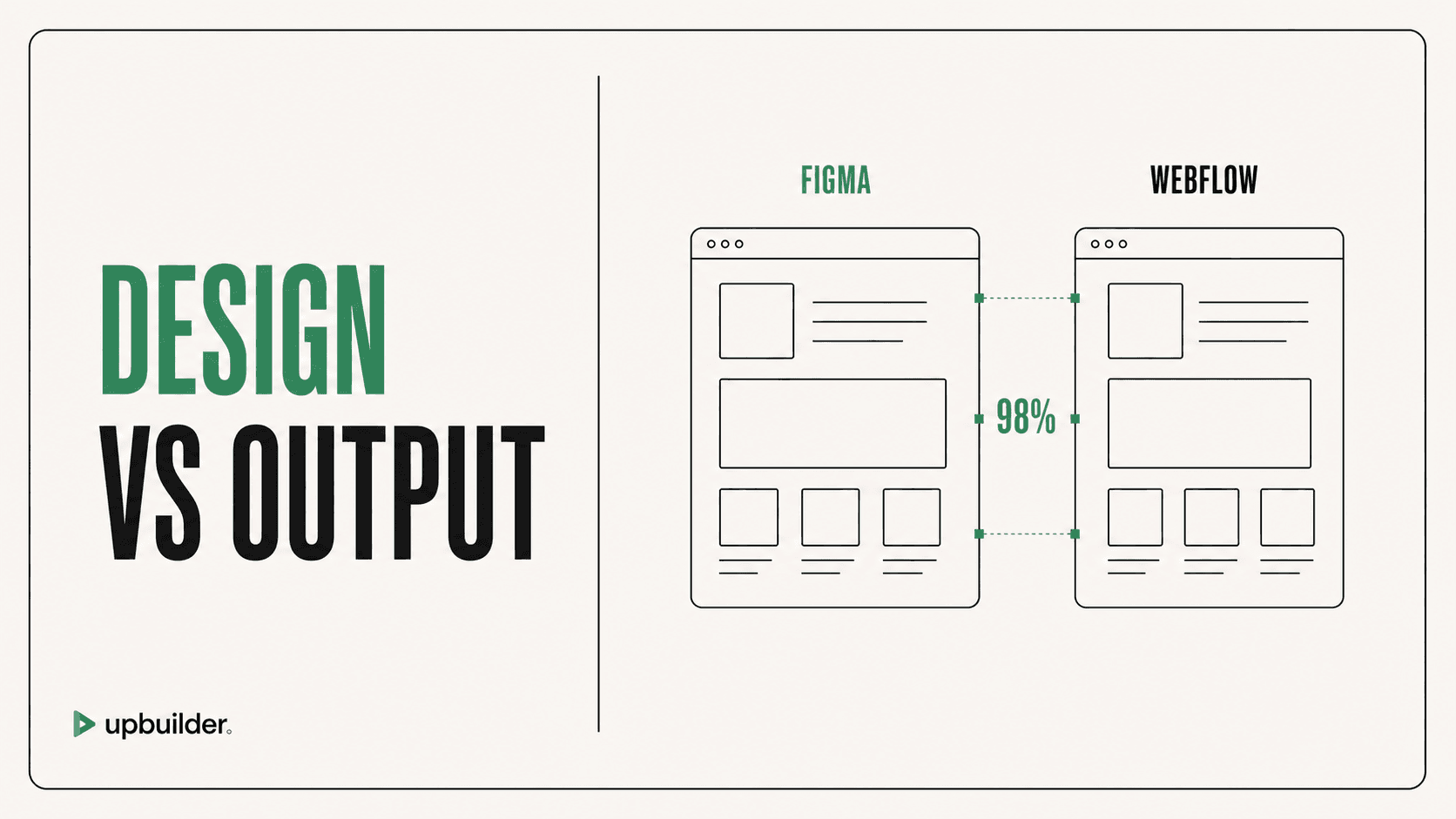
Review exact reference widths, intermediate widths, text wrapping, source order, navigation, images, and shared components. A close desktop screenshot is not enough when the site breaks between breakpoints.
Editability and delivery risk
Inspect elements, class reuse, variables, components, assets, interactions, and the five-minute edit test. Change a heading, image, brand color, section order, and mobile spacing to see whether the output can be maintained by the intended client.
Choose the workflow with the lower total preparation, cleanup, QA, and handoff cost. Avoid selecting a tool from a demo built on a perfectly prepared source.


Recommended workflow
- Choose a representative page with real complexity.
- Run both workflows against the same approved reference.
- Compare preparation time, visual accuracy, and responsive behavior.
- Inspect Webflow structure and perform common edits.
- Publish both to staging and test supported interactions.
- Document cleanup time before selecting a standard workflow.
Common questions
Is the official Figma to Webflow plugin bad?
No. It is useful for supported, prepared sync workflows. Its fit depends on source structure and the delivery outcome your team needs.
Is AI conversion always more accurate?
No. AI can interpret mixed structure and repair differences, but accuracy depends on the source, references, destination, and validation process.
Which workflow is better for client files?
UpBuilder is designed for approved real-world files where mandatory restructuring would add time and risk. Test the most complex representative page first.
Sources and verification
Product limits and features can change. These sources were reviewed for this guide. Community discussions are identified separately and are not treated as universal product facts.
Ready to build from Figma?
Build your selected Figma designs into an editable website and review the real output.
Start a build