Figma to Webflow Without Auto Layout: Practical 2026 Guide
By UpBuilder Team
Reviewed and updated July 14, 2026
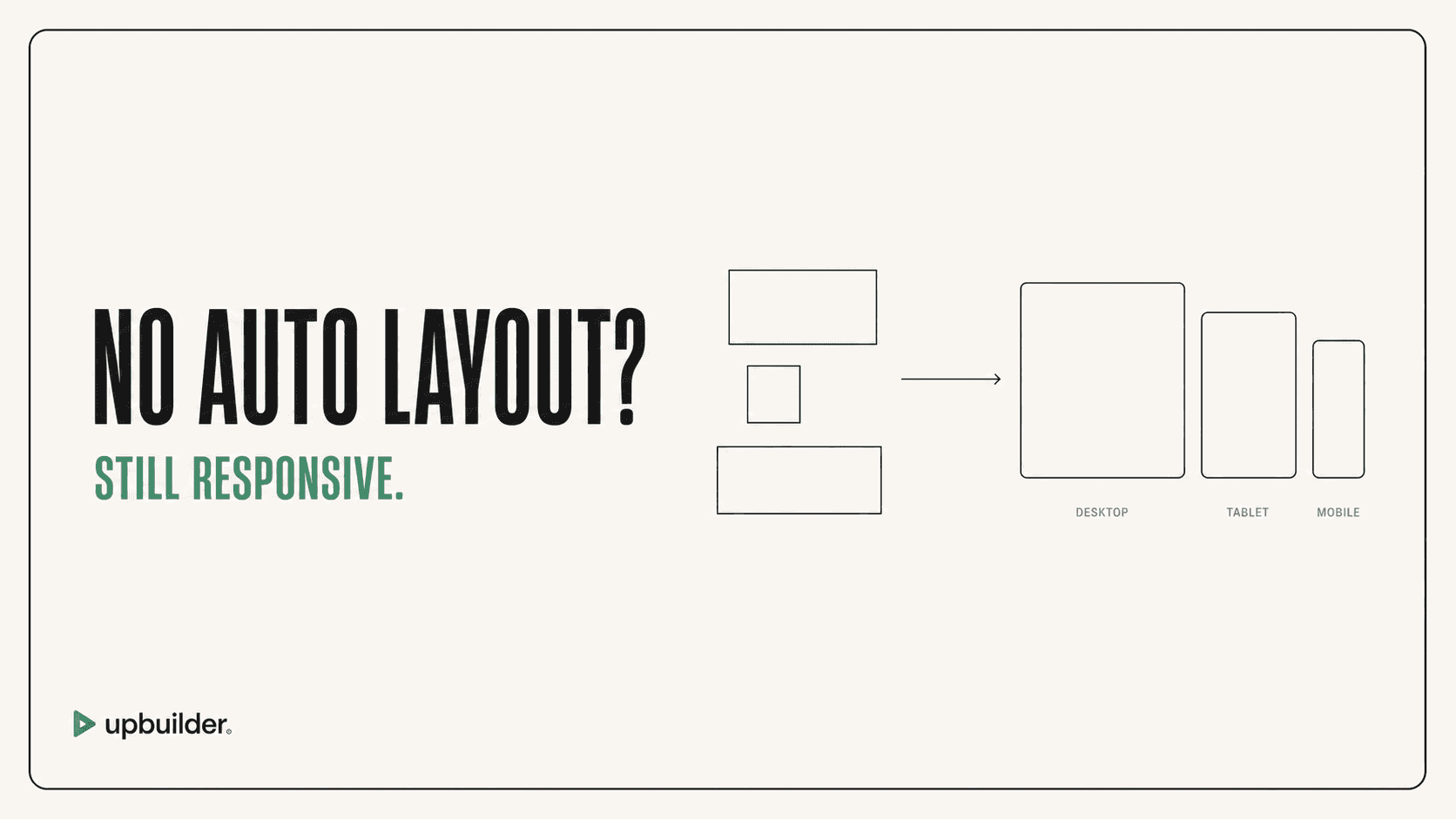
Short answer: You can convert many Figma designs to Webflow without rebuilding every frame in Auto Layout. The converter must infer layout relationships from geometry, hierarchy, styles, constraints, repeated patterns, and responsive references, then validate those decisions in a real browser.
What matters most
- Auto Layout is valuable evidence, not the only evidence.
- Desktop and mobile references reduce responsive ambiguity.
- Overlaps, masks, and absolute positioning need careful review.
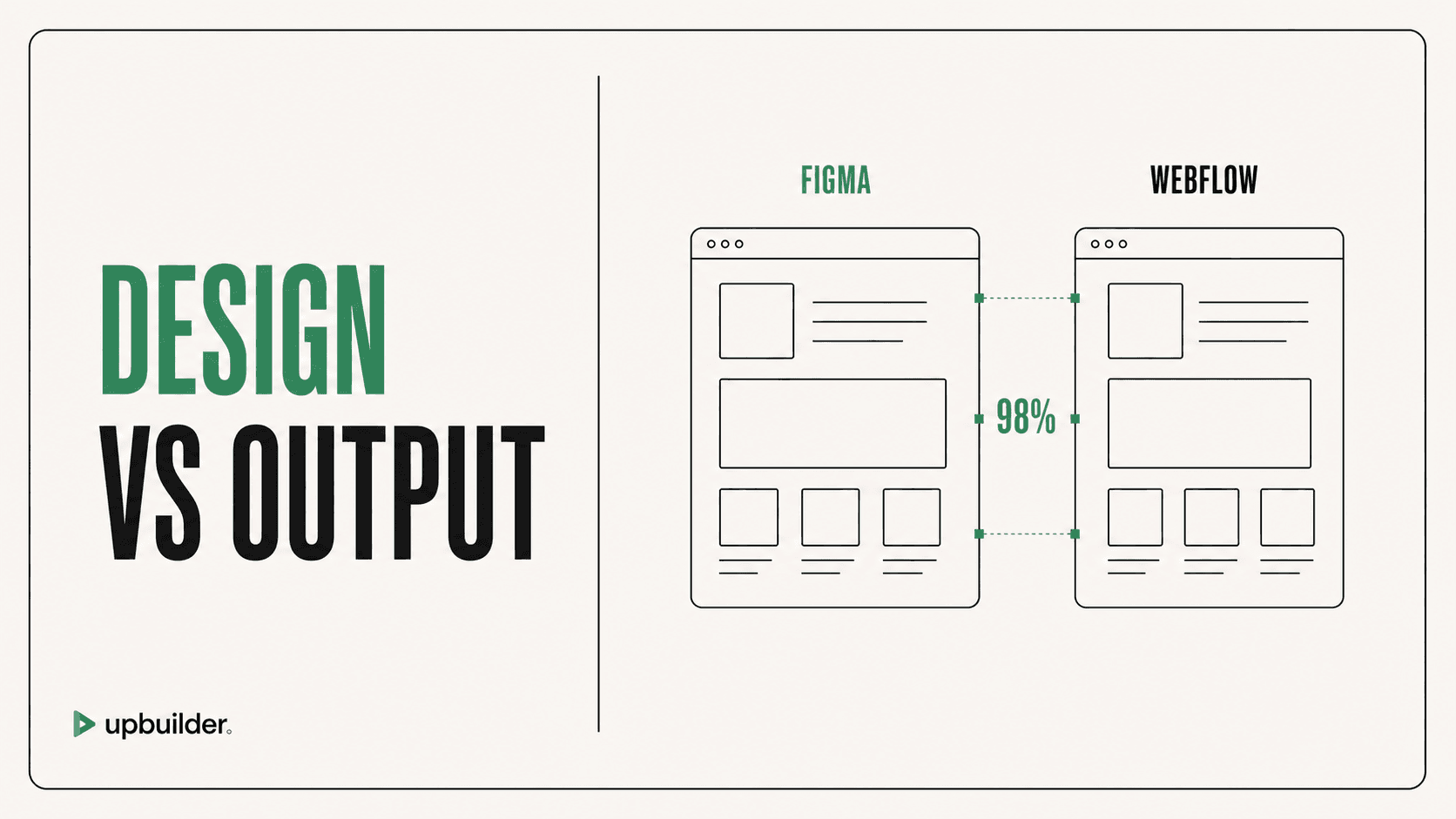
- Approve the rendered Webflow result, not the extraction step.
Auto Layout helps, but it is not the only source signal

Why teams avoid retrofitting Auto Layout
Approved client files often mix Auto Layout, groups, components, fixed coordinates, masks, and one-off decorative layers. Rebuilding the complete file can change spacing, text wrapping, component behavior, and the visual reference the client already approved.
Retrofitting is worthwhile when the Figma file will remain a long-term design system. It is less attractive when the immediate objective is an accurate production website and the source file will not continue as the primary responsive specification.
What layout inference uses instead
A capable workflow can evaluate containment, alignment, spacing patterns, repeated dimensions, constraints, text bounds, z-order, component relationships, and similarities between desktop and mobile frames. These signals suggest whether a browser layout should use normal flow, flexbox, grid, or selective absolute positioning.
UpBuilder combines source structure with visual references. It does not treat every Figma layer as a one-to-one browser element. Decorative groups can be simplified, while meaningful content and reusable patterns should remain understandable and editable.
Where no-Auto-Layout conversion becomes ambiguous
A single desktop frame does not explain how cards should wrap, what navigation does on mobile, whether an image keeps its aspect ratio, or which decorative objects may disappear. Overlapping objects may represent intentional composition or accidental placement.
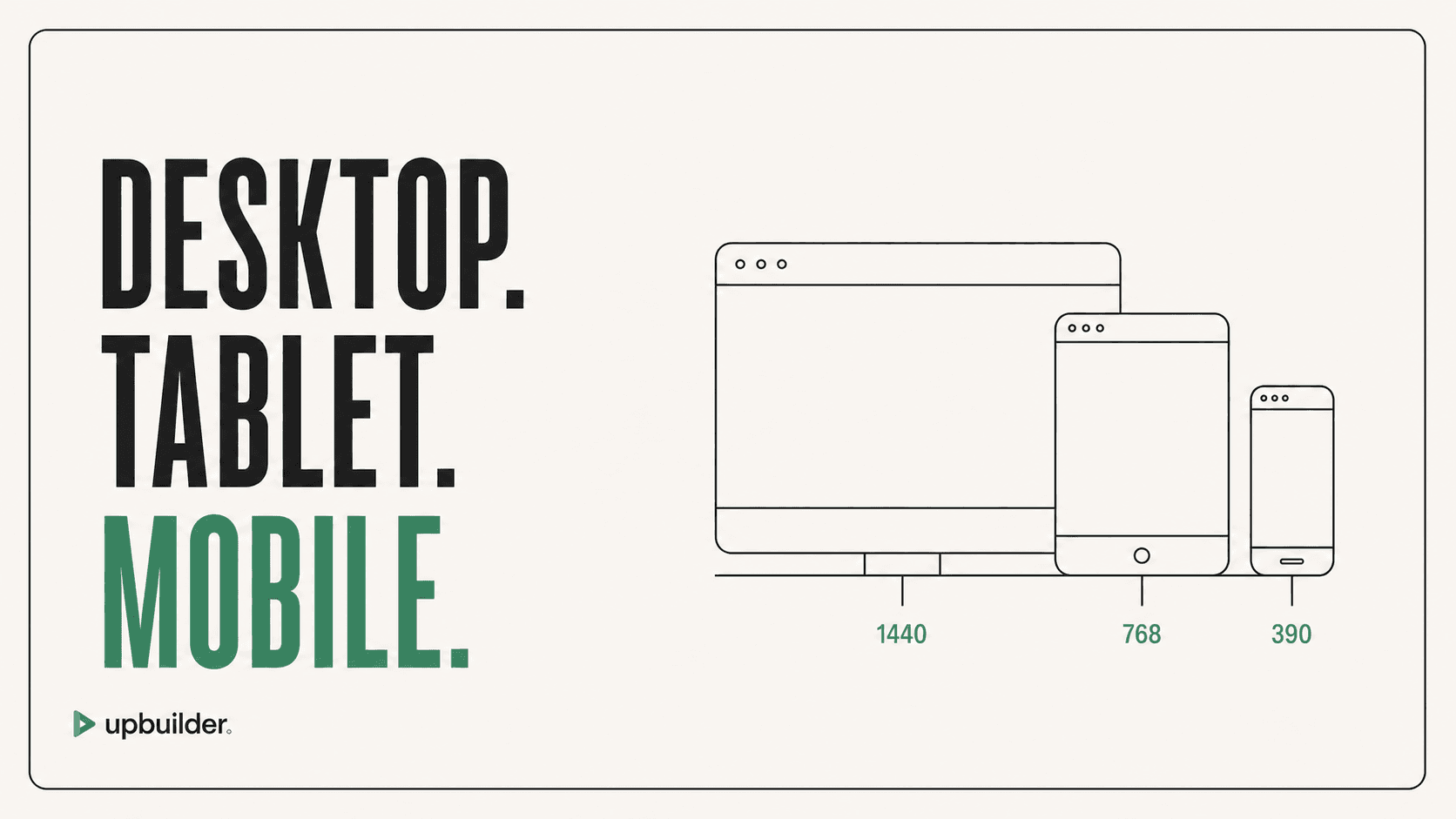
Provide mobile or tablet references for important pages. If those references do not exist, document the desired stacking, source order, visibility, crop behavior, and breakpoint changes before approving the build.
- Fixed-position text that should reflow
- Groups that visually resemble grids but use inconsistent spacing
- Repeated cards with different internal heights
- Decorative layers mixed with meaningful content
- Components whose instances have manual overrides
How UpBuilder handles the workflow
UpBuilder reads selected nodes, layers, assets, styles, and layout relationships, then maps responsive variants into logical pages. AI-assisted generation and repair are followed by rendered comparison and destination checks that provide evidence about the result.
For Webflow, the important output is an editable destination with inspectable elements, classes, assets, and supported interactions. Test one representative complex page before committing a large client project.


Recommended workflow
- Select one complete complex page and every available responsive variant.
- Confirm fonts, assets, intended page grouping, and destination access.
- Generate the Webflow version without altering the approved source first.
- Compare at the exact Figma widths and several intermediate widths.
- Inspect native editability, source order, assets, and shared classes.
- Record intentional differences and remaining manual work.
Common questions
Is Auto Layout required for UpBuilder?
No mandatory Auto Layout preparation is required for supported files. Clear structure still reduces ambiguity and improves maintainability.
Will a file without Auto Layout be responsive automatically?
Not from structure alone. Responsive references and explicit behavior rules provide the evidence needed for reliable decisions between widths.
Should I remove Auto Layout before conversion?
No. Keep useful Auto Layout. The benefit is avoiding mandatory retrofitting of areas that do not already use it.
Sources and verification
Product limits and features can change. These sources were reviewed for this guide. Community discussions are identified separately and are not treated as universal product facts.
Ready to build from Figma?
Build your selected Figma designs into an editable website and review the real output.
Start a build